| IAP Software ™ |  |
| IAP Software ™ | |
Asset Maintenance
Asset Maintenance allows the user to identify specific assets within the IAP Software. The list of preloaded assets which have already been entered into the IAP Software will be displayed when the Asset Maintenance screen is opened. These assets can then be selected when creating an incident and designated asset information can be pulled into select forms.
Contents
Use the Copy Button to Add a New Asset
To add new assets:
Select the Add button  . The bottom of the screen will populate with blank entry fields.
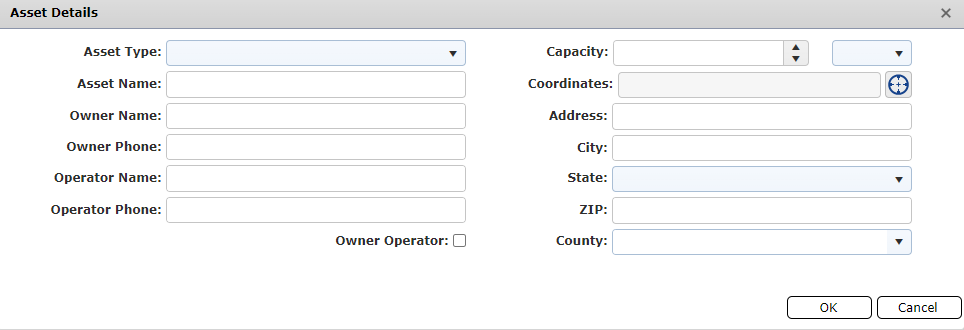
Free type, use the Up and Down buttons  , select from the Drop-down menu
  , and use the Set Location button
  to enter the relevant information into the fields available.
Click the Save button  to save the changes.
To remove an item, hover over the desired item for a moment and the delete button will appear, then click on the Delete button  to remove the item. If you remain hovering over the item, the delete button will disappear after a couple of seconds.
Click the Save button  when finished.
The user may desire to add a new asset which possesses characteristics similar to another asset already loaded into the software. To save time and effort the user can copy the preexisting asset and then make adjustments to the asset details and save as the new asset.
Select the asset to be copied from the list of entered assets.
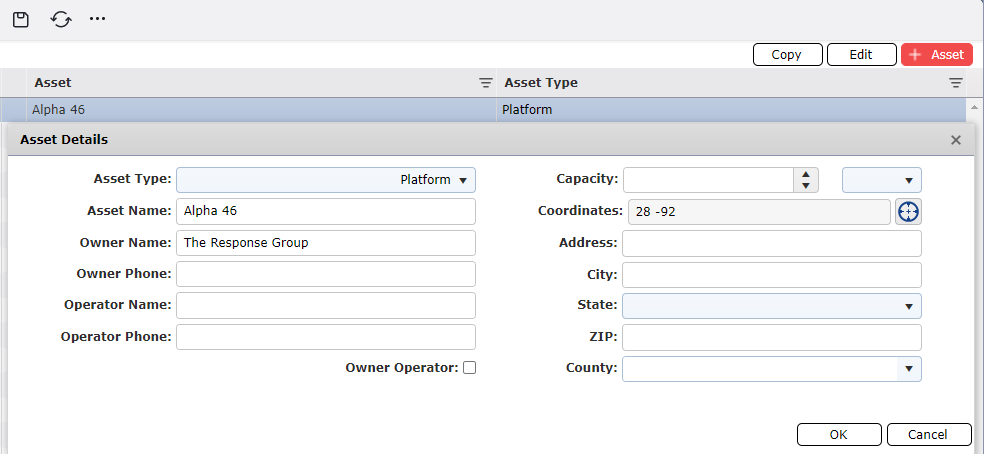
Select the Copy button  . The bottom of the screen will populate with the copied asset details fields.
Free type, use the Up and Down buttons  , select from the Drop-down menu
  , and use the Set Location button
  to enter/update the relevant information.
Click the Save button  to save the changes.
At times it may be necessary to make adjustment to asset details for assets already loaded.
Select the Asset to be modified by selecting the asset and clicking the Edit  button
  to view the asset details window.
Make the desired changes to the information fields available.
Click the Save button  to save the changes.
© 2024, TRG The Response Group LLC., All rights are reserved.
No part of this web site, and the information which it contains, may be reproduced, stored in a retrieval system or transmitted in any form or by any means, electronic, mechanical, photocopying, recording or otherwise, without prior written permission of TRG.