| IAP Software ™ |  |
| IAP Software ™ | |
Icon Manager
The Icon Manager screen is utilized to add icons that are available for use when creating maps within the ICS 201-1 Incident Briefing Map/Sketch or Map/Sketch form. Users can also designate icons as favorites. The list of icons displayed can then be filtered to show only those designated as a favorite.
Contents
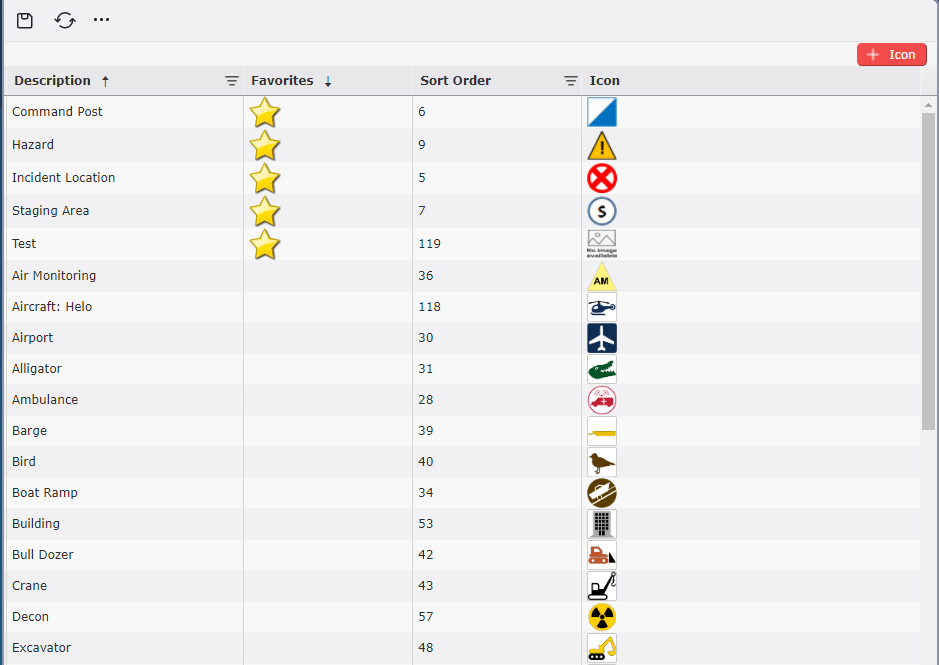
New icons can be added or selected from the TRG Icon bank.
Click the Add Icon button  . A new line will appear.
Free type to add a brief description of the icon. This description will be displayed within the icon bank on the Map/Sketch form.
Click in the Favorites column to activate the checkbox. Click the checkbox to mark the item as a favorite. Within the icon bank on the Map/Sketch form users can filter to show only icons marked as favorites.
The sort order column will automatically populate with the next consecutive numeral. Click within the field and free type to change the sort order value.
Hover over the Add button  within the Icon column to display the options available for adding a new icon.
Click the Upload Image button  to navigate to the file explorer to select the preferred icon.
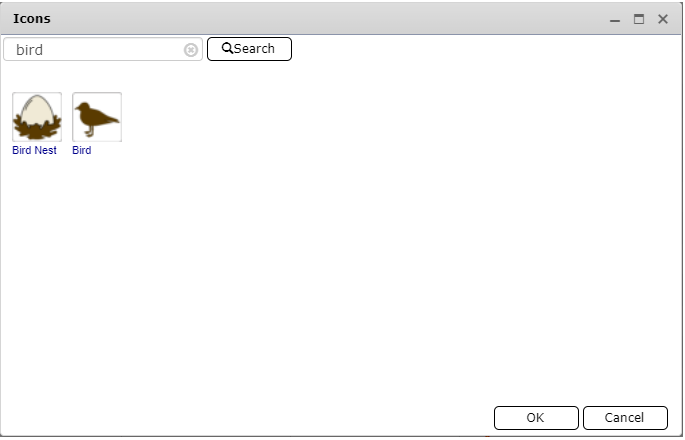
Click the Search TRG Icon Bank button  to select an existing icon from the TRG catalogue. Use the search field provided to search for the desired icon. Select the icon and click OK.
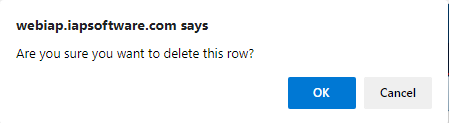
NOTE: Users can remove a line or an icon. To delete, hover over the item you wish to remove and click the Delete button  . Next, confirm the option to delete by clicking OK.
© 2024, TRG The Response Group LLC., All rights are reserved.
No part of this web site, and the information which it contains, may be reproduced, stored in a retrieval system or transmitted in any form or by any means, electronic, mechanical, photocopying, recording or otherwise, without prior written permission of TRG.