| IAP Software ™ |  |
| IAP Software ™ | |
Check-In Survey Setup
A set of screening questions can be included as part of the daily check in process. These questions must be answered before personnel are permitted to enter the work site. Before the survey can be activated and utilized the questions and answers must be setup. After the survey is created it must be turned on for the database. For more information see the Application Options page.
Contents

Before a survey can be activated for an incident, the questions and responses must be established. Surveys will open by default in the incident the user is currently in, as these are configured per incident.
1. Click the Add button  next to Survey to add a new survey name. The New Survey window will open.
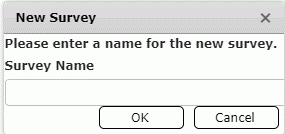
2. Free type to enter a name for the new survey then click OK  . The survey name will appear in the Survey column.
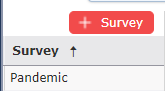
After the survey has been created and named, survey questions and answers must be added.
1. Click on the survey name within the Survey column to select the survey to which questions will be added.
2. Click the Add button  next to Questions to add a new survey question.
3. Free type to add the question text.
4. Within the Incorrect Answer field, click to select Yes, No, or Neither.
5. Within the Incorrect Answer Response field, free type to add guidance to be followed when an incorrect answer is received.
6. Within the Comment Label field, free type to enter a label for the comments associated to the question.
NOTE: This label will be displayed along with the comments on the Check-In Survey Report.
© 2024, TRG The Response Group LLC., All rights are reserved.
No part of this web site, and the information which it contains, may be reproduced, stored in a retrieval system or transmitted in any form or by any means, electronic, mechanical, photocopying, recording or otherwise, without prior written permission of TRG.