| IAP Software ™ |  |
| IAP Software ™ | |
Daily Cost Maintenance
The Daily Cost Maintenance window allows the user to track the cost of the incident daily. The most important function of the Daily Cost Maintenance is that it generates a projected daily burn rate through the Daily Cost Report for the incident.
Contents
Add and Edit Information for Rental/Purchase

The window displays a split screen view. Incident resources are listed on the left side with the daily cost maintenance fields on the right side of the screen. They are divided by a solid vertical bar which can be adjusted to the left or right to view the appropriate amount of each screen. The Button Toolbar at the top of the window provides options that relate to the form. There is also an option to Group Resources  and is marked by a check if the function is used. However, it must be unchecked if this feature is not desired, as it will automatically default to the group resource function. In addition, the columns on either side of the vertical bar can be sorted and rearranged for ease of navigation.
To add the daily cost this information will need to be brought over from the Price Maintenance window. At the beginning of the day or the first-time daily cost is added for that day only the left side of the screen will have resources showing. The right side will not populate until the process below is followed.
Choose the date on the Calendar Control button  to generate cost information.
To include all grouped resources, click on the checkbox  or uncheck the box if grouped resources are not needed.
Add new Daily Cost report by clicking on the “Plus Daily Cost”  .
.
Copy all costs from one day to another by clicking on the Copy button  . Select the dates to copy costs from one day to another using the Calendar Control buttons
  . The click OK.
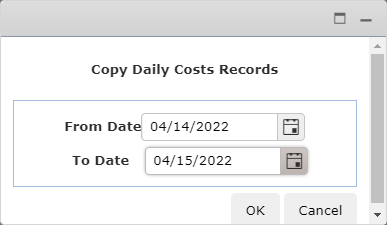
Resources can be deleted from the daily cost if the item does not apply for the selected date. Hover the mouse pointer over the line to be deleted till the Delete icon  shows up, then click on it.
Use the Clear All button  to clear pricing information for all the resources on the right side of the screen.
NOTE: Daily Cost Maintenance screen is divided into two sections the left side has all the information pulls from the 213 Resource Request form the right side of the form pulls from the Price Maintenance form.
The Daily Cost Maintenance window has many of the same fields that Price Maintenance does. Price Maintenance is where most cost information should be entered. However, costs can be added and edited in this window to reflect a change for that specific resource for that day, but it does not change on Price Maintenance so if this is a permanent change it should be entered on Price Maintenance.
Note: If the costs on resources are changing daily (trying to match daily tickets) Daily Cost Maintenance would be where this would happen. This, however, would only be effective on an incident which was very small.
Total Daily Cost: This column is system-generated and cannot be edited. This shows the total cost of the resource for that day.
Rental: This field is important as it allows the user to differentiate between rentals and purchases. Enter a check for rental and leave unchecked for purchase.
Unit Price: Enter the unit price if different for that day.
Unit Price UOM: This is the corresponding unit of measure. Make sure that the unit of measure is the same for Quantity and Unit Price.
Quantity: The quantity of the resource (which may be different from the requested or assigned amounts).
Quantity UOM: This is the corresponding unit of measure for the quantity.
OT Unit Price: If the resource has overtime (OT) enter the cost here. This would be used on a rental.
Regular Time: Enter the actual amount of time that the resource was used. This field and Overtime is used for rental costs.
Overtime: If overtime enter the amount of time here.
Additional Cost Type: If the resource has an additional cost added on such as cost + 10% use the drop down and pick percentage. If it is a flat cost and not a percentage, choose flat on the drop down.
Additional Cost Amount: Enter either the percentage amount or the flat cost.
Discount Type: If the resource is going to have a discount as a percentage or as a flat rate then use the drop down and pick one of the options – percentage/flat.
Discount Amount: Enter either the percentage amount or the flat cost.
Price Per Quantity: Enter the quantity price if different for that day.
Price Per Quantity UOM: This is the corresponding unit of measure for the price per quantity.
Cost Center: Indicates the account or department to charge off that resource to.
Currency: Use this field to indicate if it is USD or another currency. The software automatically defaults to USD.
Last Edit: This column is system-generated and cannot be edited. It shows the last time the resource was modified.
Edit By: This column is system-generated and cannot be edited. It shows who modified the resource last.
© 2024, TRG The Response Group LLC., All rights are reserved.
No part of this web site, and the information which it contains, may be reproduced, stored in a retrieval system or transmitted in any form or by any means, electronic, mechanical, photocopying, recording or otherwise, without prior written permission of TRG.