| IAP Software ™ |  |
| IAP Software ™ | |
Price Maintenance
The Price Maintenance window allows the user to maintain a record of the price of a specific incident resource. This window is the easiest and fastest way to enter the resource price and any additional costs associated with that resource. For help using general form functions (e.g. Create/Open Version, Save, etc.) and accessing preloaded versions, see the General Form Functions page.
Contents
Add and Edit Price Information

The window displays the incident resources on the left side with the price maintenance fields on the right side of the screen. The Button Toolbar at the top of the window provides many options that relate to the form, such as saving information, downloading a spreadsheet, and many more. There is an option to Group Resources  and is marked by a check if the user wants to use the function. However, the user must uncheck it if they do not want to use this feature as it will automatically default to the group resource function.

The columns in this window can be sorted and rearranged for ease of navigation.
To sort a column:
To sort a column, click on column heading title. The header presents an arrow to show direction of sort order.
To move a column, click on column heading and drag (left or right) it to the desired location on the column heading bar.
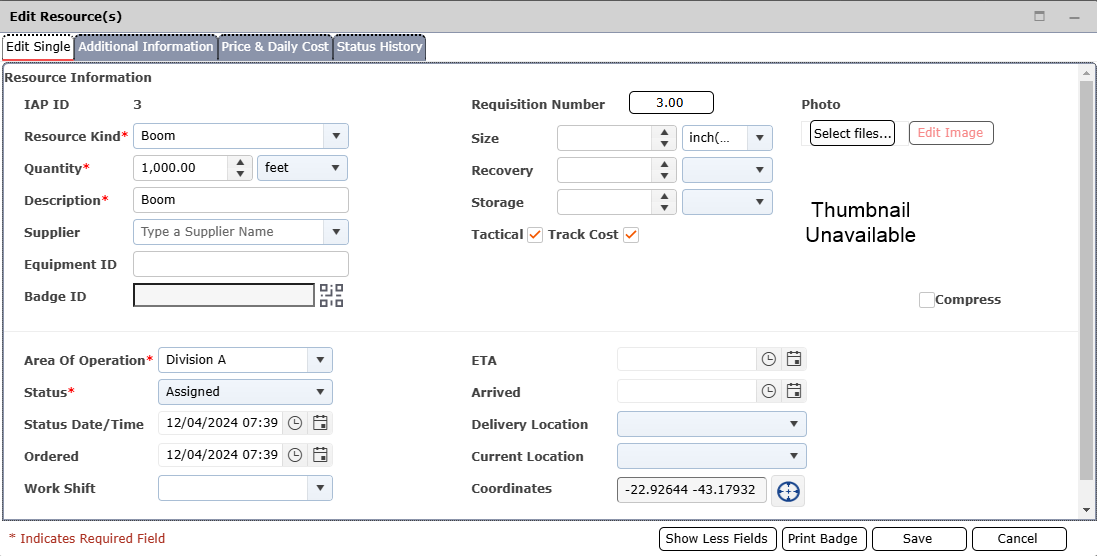
A resource can be edited from this screen without the need to navigate to the Resource Summary.
Select a resource to highlight.
Select the Edit Resource button  . The Add/Edit Resource dialog box will appear.
Enter changes, as necessary on the Basic Information tab.
Contains a Notes section that should be completed with changes to the price due to contract re-negotiation, adjustment to the price or daily cost and who authorized the change with a date and initials of the individual making the notes.
All other information on this tab refer to ICS 201-4 - Resource Summary.
Click the Price & Daily Cost tab and see that lines can be added by using the  .
.
When adding a new line to the Price Maintenance, information will need to be completed such as: Price Effective Date, Unit Price, Unit Price UOM, Currency, Cost Center, and Notes. (Depending on the agreement there are field for OT, Stand By, Holiday Rate, Saturday Rate, and Sunday Rate.)
To remove an item, hover over the desired item for a moment and the delete button will appear, then click on the Delete  button to remove the item. If you remain hovering over the item, the delete button will disappear after a couple of seconds.
If the item is a purchase instead of a rental or vice versus uncheck the box under the Rental column  .
.
Daily Cost Maintenance click on the  a new line will appear with the current date already populated.
Enter any missing information including the checkmark for rental. (any changes go back to the additional information and add a note.)
NOTE: The information that is currently in the Price Maintenance will appear in the pull in except for the current Unit Price and Unit Price UOM.
Click Save  to retain the changes (the window will close.)
NOTE: The Edited on and Edited by can be viewed. All other information on this tab refer to ICS 201-4 - Resource Summary or CMT Notification. Print Badge instructions see Check In Out.
This section shows the user how to add or edit the price information, rental/purchase, equipment number, additional cost or percentage, discounts if any, and freight charges if available.

This sub-section explains each field that pertains to a rental.
Under the Track Cost column, check the box  to track the resource’s costs.
Under the Rental column, check the box  to differentiate a rental from a purchase.
Note: Checking a Rental indicates recurring costs. Unchecking Rental indicates a one-time cost.
Under the Unit Price column, enter the price.
Under the Unit Price UOM column, enter the price unit of measure.
Under the View Req. column, select a requisition (i.e.,  ) to view a resource’s requisition.
Under the OT Unit Price column, enter the resource’s overtime unit price, if applicable.
Under the OT Starts After column, enter the number of hours threshold for a resource to be charged an overtime rate.
Under the Additional Charges column, enter any charges which exceed the original quoted price.
Under the Discount Type column, clicking the add link will open a new window for Sliding Scale Discount Settings to enter the Start Day, End Day and % of Rate discount(s) that may offset a cost.

Under the Price Effective column, enter the date and time. Clicking in the field will reveal a calendar button  to assist with the date entry.
Under the Currency column, select from the dropdown menu.
Under the Cost Center column, enter the cost center data.
Under the Notes column, enter any additional notes.
© 2024, TRG The Response Group LLC., All rights are reserved.
No part of this web site, and the information which it contains, may be reproduced, stored in a retrieval system or transmitted in any form or by any means, electronic, mechanical, photocopying, recording or otherwise, without prior written permission of TRG.