| IAP Software ™ |  |
| IAP Software ™ | |
Estimated Cost Maintenance
The Estimated Cost Maintenance screen allows the user to enter information regarding the estimated costs of the resources. This is used to estimate the total cost of the incident for a given amount of time. The resource attribute fields (ID, Resource Kind, Resource Description, etc.) are only for reference. For help using general form functions (e.g. Create/Open Version, Save, etc.) and accessing preloaded versions, see the General Form Functions page.
Contents
Add and Edit Rental / Purchase Information

The screen displays the incident resources on the left side with the estimated cost maintenance fields on the right side of the screen. There is an option to Group Resources  and is marked by a check. However, unchecking the box will show single resources listed without grouping.
This section provides a step by step process to fill out the fields necessary to complete the Estimated Cost Maintenance window and this information helps generate the Estimated Cost Report.
Rental: This field is important as it differentiates between rentals and purchases. Check the box for rented resources. This should be left unchecked for a purchase.
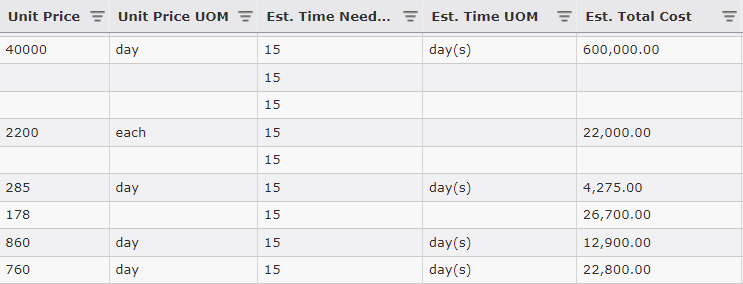
Est. Time Needed: Enter the estimated time that the resource will be used.
Est. Time UOM: This is the corresponding unit of measure (day, hour, week, and month) for the Est. Time Needed. Generally calculating a day rate is the best format to use.
Unit Price: Enter the unit price.
Unit Price UOM: This is the corresponding unit of measure (day, hour, week, and month) for the “Unit Price.”
Currency: Use this field to indicate if it is USD or another currency. The software automatically defaults to the Default Currency in Applications Options. For more information, see the Applications Option page.
Est. Total Cost: This is the estimated total cost for that resource.
View Requisition: View the 213 Resource Request that the resource was generated from.
NOTE: “Est. Time Needed” and “Est. Time UOM” are fields not necessary for purchased resources.
Use the bulk edit feature to make changes to several resources at once. This feature allows the user to quickly update the price, currency, unit of measure and other attributes at the same time.
Be sure the correct filters have been selected before using the Bulk Edit feature. Filter  down the list to those that need a change. The filtered list of resources on the screen (current view) are those that will update when selecting bulk edit.
Click on the Bulk Edit button  to open the Bulk Edit window.
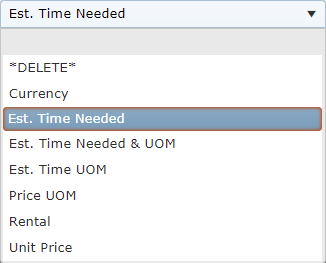
Select the column to edit from the drop down.
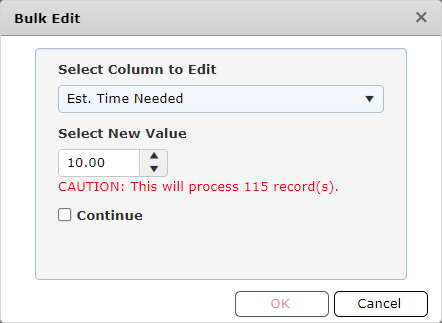
Next, enter the new value. Confirm the number of records to being updated, check the Continue checkbox  and click OK
  .
.
Then use the Save button  to update the form.
© 2024, TRG The Response Group LLC., All rights are reserved.
No part of this web site, and the information which it contains, may be reproduced, stored in a retrieval system or transmitted in any form or by any means, electronic, mechanical, photocopying, recording or otherwise, without prior written permission of TRG.