| IAP Software ™ |  |
| IAP Software ™ | |
ICS 202a – Command Direction
The ICS 202a – Command Direction form supplements the ICS 202 form by documenting the IC/UC strategic direction and guidance through Key Decisions/Procedures, Priorities and Limitations/Constraints for use during the next operational period. The form includes the following sections: Priorities, Limitations and Constraints, Key Decisions and Procedures, and Approved By. For help using general form functions (e.g. Create/Open Version, Save, etc.) and accessing preloaded versions, see the General Form Functions page.
Contents
Select Preloaded Limitations and Constraints
Select Preloaded Key Decisions and Procedures
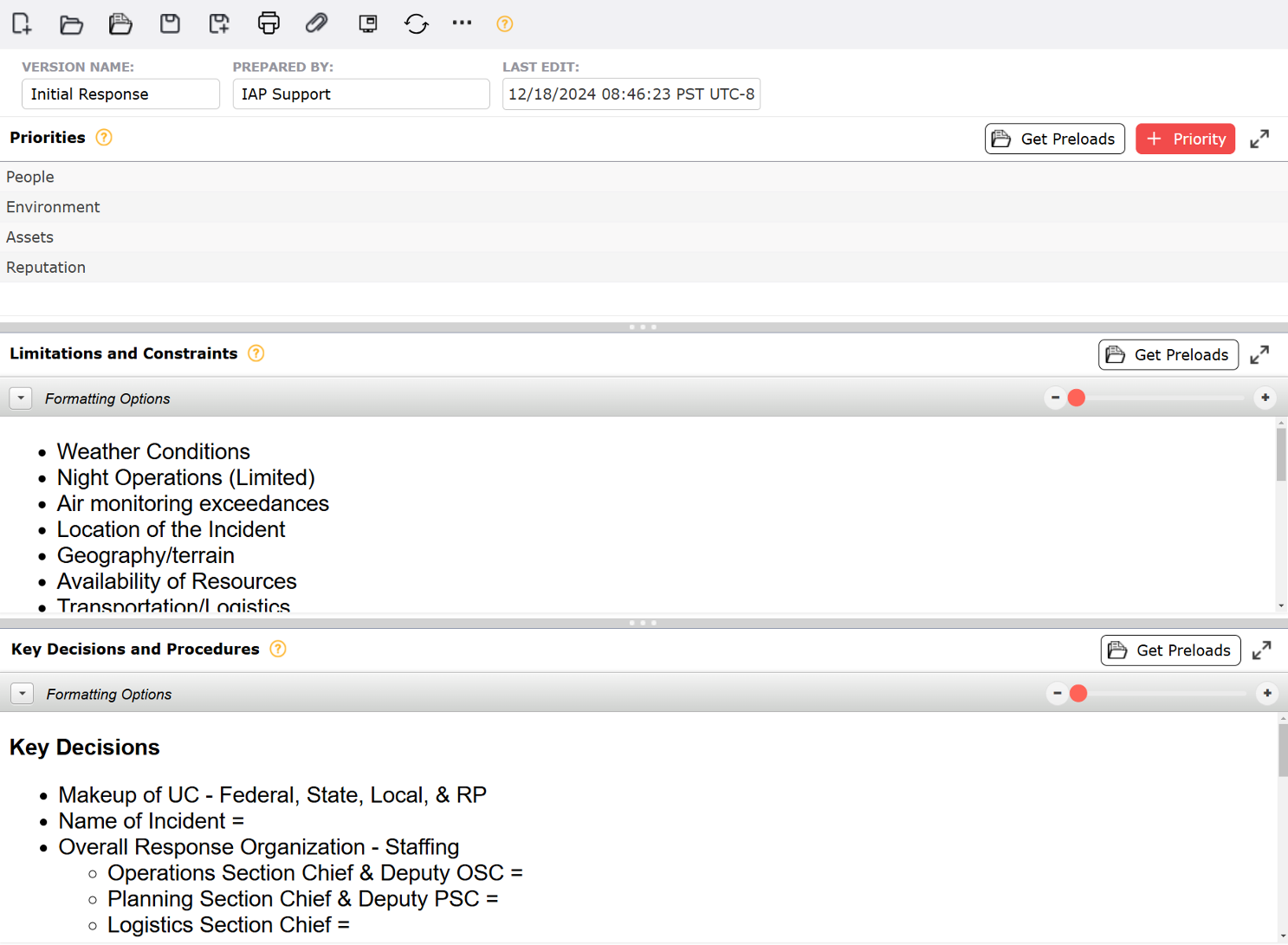

This section discusses priorities for the incident response for the current operational period and for the duration of the incident. List the priorities in order of importance. Enter clear, concise statements of strategic direction for managing the response.
To add a Priority, select the Add button  to the left of Priorities.
To remove an Priority item, hover over the desired item for a moment and the delete button will appear, then click on the Delete button to remove the item. If you remain hovering over the item, the delete button will disappear after a couple of seconds.
To rearrange Priorities (i.e., prioritize Priorities in order of importance), place the cursor in the selected Priorities. Click and hold the Priorities to drag and drop above or below its previous location.
This sub section provides common preloaded priorities to facilitate response planning.
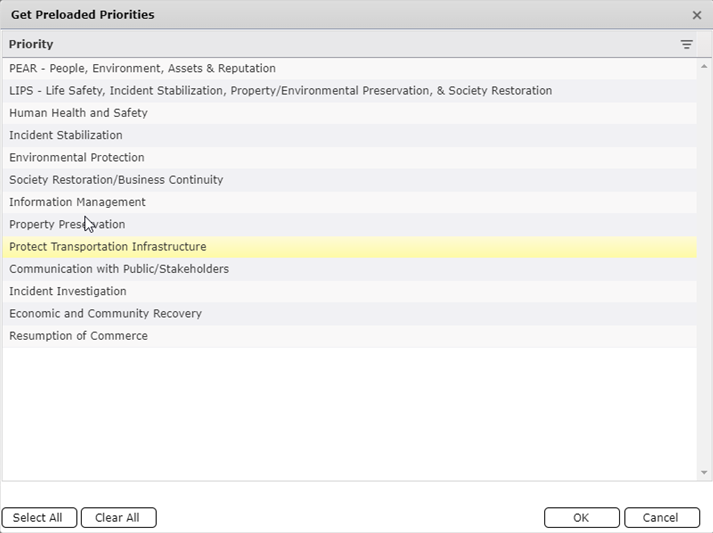
Select  . The Get Preloaded Priorities dialog box below will appear.
Select individual Priorities or click  . Selected Priorities will highlight in blue.
Click  to unselect all Priorities.
Click  to copy selected Priorities.
This section discusses limiting factors and restrictions due to operations, weather, jurisdictions, resources, and parameters agreed upon by the Unified Command. Enter clear and concise statements.
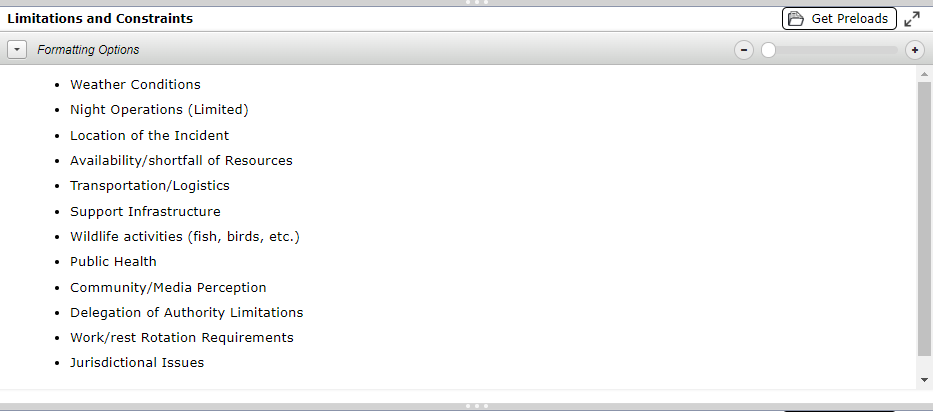
In the free space, enter appropriate limitations and constraints.
To change the size of the font on the page use the slide tool  . Sliding the button toward the
  increases the size of the font. To change the size back to the default font size, slide the button toward the
  .
.
This sub section provides common preloaded limitations and constraints to facilitate response planning.
NOTE: This section of the form is a free type or Rich Text field, allowing the user to type in Limitation and Constraints or opt to use the Get Preloads function.
Click  to download preloaded available data. The Limitations and Constraints dialog box will appear.
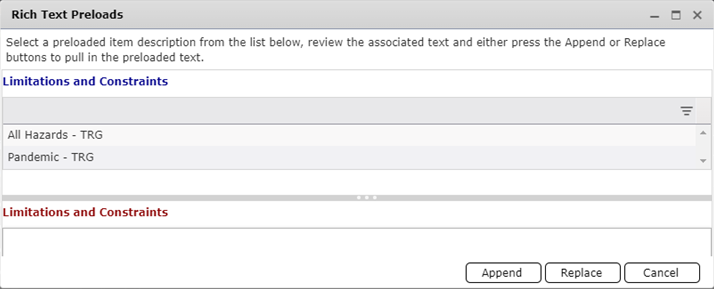
Select the desired preload to use and click the Append button to add the text to existing data in the form or click Replace to copy the data into the form, in place of existing data. If it is decided no changes will be made, click the Cancel button.
This section provides the incident management team process guidance for delegation of authority, agency cooperation, cost sharing, resource ordering and other administrative guidance. Enter operational guiding measures from the Unified Command.
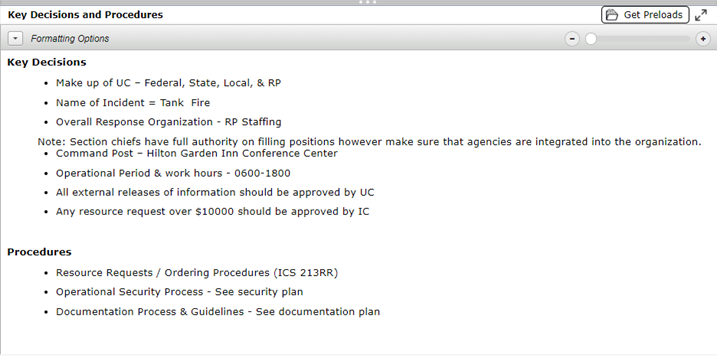
In the free space, enter appropriate key decisions and procedures.
This sub section provides common preloaded key decisions and procedures to facilitate response planning.
NOTE: This section of the form is a free type or Rich Text field, allowing the user to type in Key Decisions and Procedures or opt to use the Get Preloads function.
Click  to download preloaded available data. The Key Decisions and Procedures dialog box will appear.
Follow the steps listed in Select Preloaded Limitations and Constraints.
NOTE: To learn more, see the Get Preloads – Rich Text page.
© 2024, TRG The Response Group LLC., All rights are reserved.
No part of this web site, and the information which it contains, may be reproduced, stored in a retrieval system or transmitted in any form or by any means, electronic, mechanical, photocopying, recording or otherwise, without prior written permission of TRG.