| IAP Software ™ |  |
| IAP Software ™ | |
ICS 214A – Individual Log
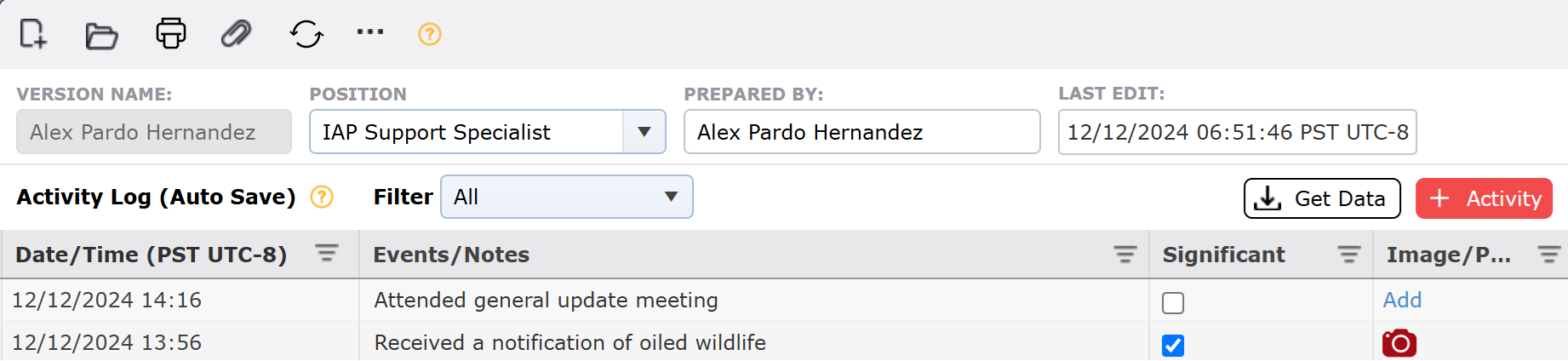
This form provides a record of the activities and tasks performed by an individual responder. All individuals are responsible for keeping their respective logs current. Events marked as significant can be used to populate other forms within the software. For help on using general form functions (e.g. Create/Open Version, Save, etc.) see the General Form Functions page.
Contents
NOTE: Upon opening the 214a, the form will automatically open to the user’s individual log, indicated by the Version Name reflecting the user’s name.
Events pertaining to an incident’s individual responder may be recorded in this 214a Individual Log.
NOTE: This form is an auto-save form, meaning once an item is added and the user clicks out of the newly added/updated line item, the system automatically saves those changes. Therefore, there is no Save button  located on this form, this is intentional.

Click the Add Activity button  to add an Event.
The Date/Time field will auto-populate with the current Date/Time information. To change the Date/Time, use the Calendar Control button  or free type in the Date/Time field. To learn more, see the Calendar Control page.
Add text to describe the activity, event, or notes.
Select the check box  in the Significant column if the item contains significant information.
NOTE: Depending on database settings: If an Event/Note is designated as Significant a broadcast message will be sent to all other users notifying them of the critical information. There is also a database setting that, when turned on, will automatically copy significant logs to the Incident Event Log.
To add an image associated with an event or note click the Add button  for the row. Navigate to the file location and select the image file to be added then click the Open button. The image file will be added and a red camera icon
  will appear indicating there is an existing image.
NOTE: Activities are automatically sorted in chronological order with most recent at the top.
Hover over the item you wish to remove and click the Delete button  . Next, confirm the option to delete by clicking OK.
Use the dropdown  to get a filtered list of your activities according to the options (All, Certain Period, last 6, 12, or 24 hours).
Click the Get Data button  . A dialog box will appear.
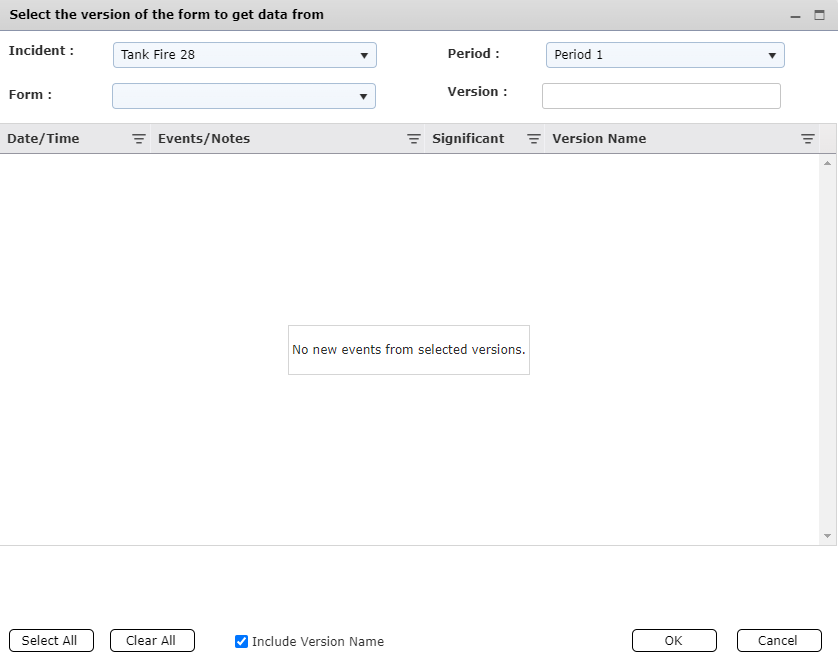
Select the form and version to pull data from. Available Events/Notes will populate within the window. Click to select the desired items. Then click OK.
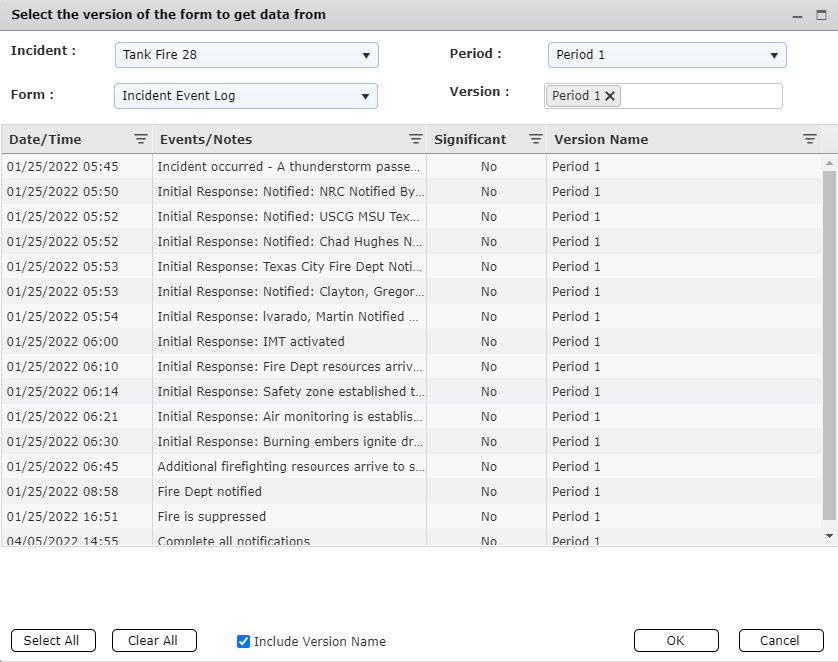
NOTE: Users can uncheck the Include Version Name checkbox if they do not want the version name included in the data that is pulled in for each action.
© 2024, TRG The Response Group LLC., All rights are reserved.
No part of this web site, and the information which it contains, may be reproduced, stored in a retrieval system or transmitted in any form or by any means, electronic, mechanical, photocopying, recording or otherwise, without prior written permission of TRG.