| IAP Software ™ |  |
| IAP Software ™ | |
Default Rate Sheets
Default Rate Sheets create prices for resource kinds that will automatically loaded for a supplier for an incident. Once a supplier has its rate sheet filled out, resources will use those rates as default values once resources are added. This saves time when running finance reports and allows for faster reviews of estimated and daily costs. These values can always be edited in Price Maintenance, Daily Cost Maintenance, and Estimated Cost Maintenance for specific resources.
Contents
Manage Supplier Rates by Resource Kinds

Select a Supplier using the Select button  .
.
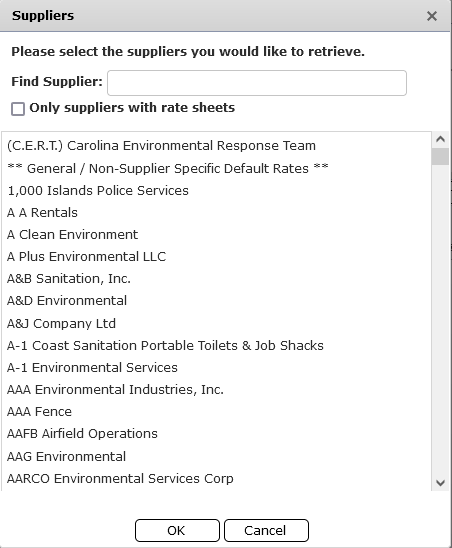
A popup will occur, be sure to choose the desired option by clicking on the line item and pressing OK.
 allows users to type into the white search box to find a specific supplier, rathe than having to scroll through the options listed
If a supplier cannot be found, it may not yet have any rates added to it, so the user must uncheck the Only suppliers with rate sheets box  to search through the entire listing of suppliers available. For more information on how to maintain suppliers, please see the Organizations page.
The supplier selected will automatically load.
NOTE:  option allows a user to setup rates to be used in the place of a missing rate for a specific supplier added to resources.
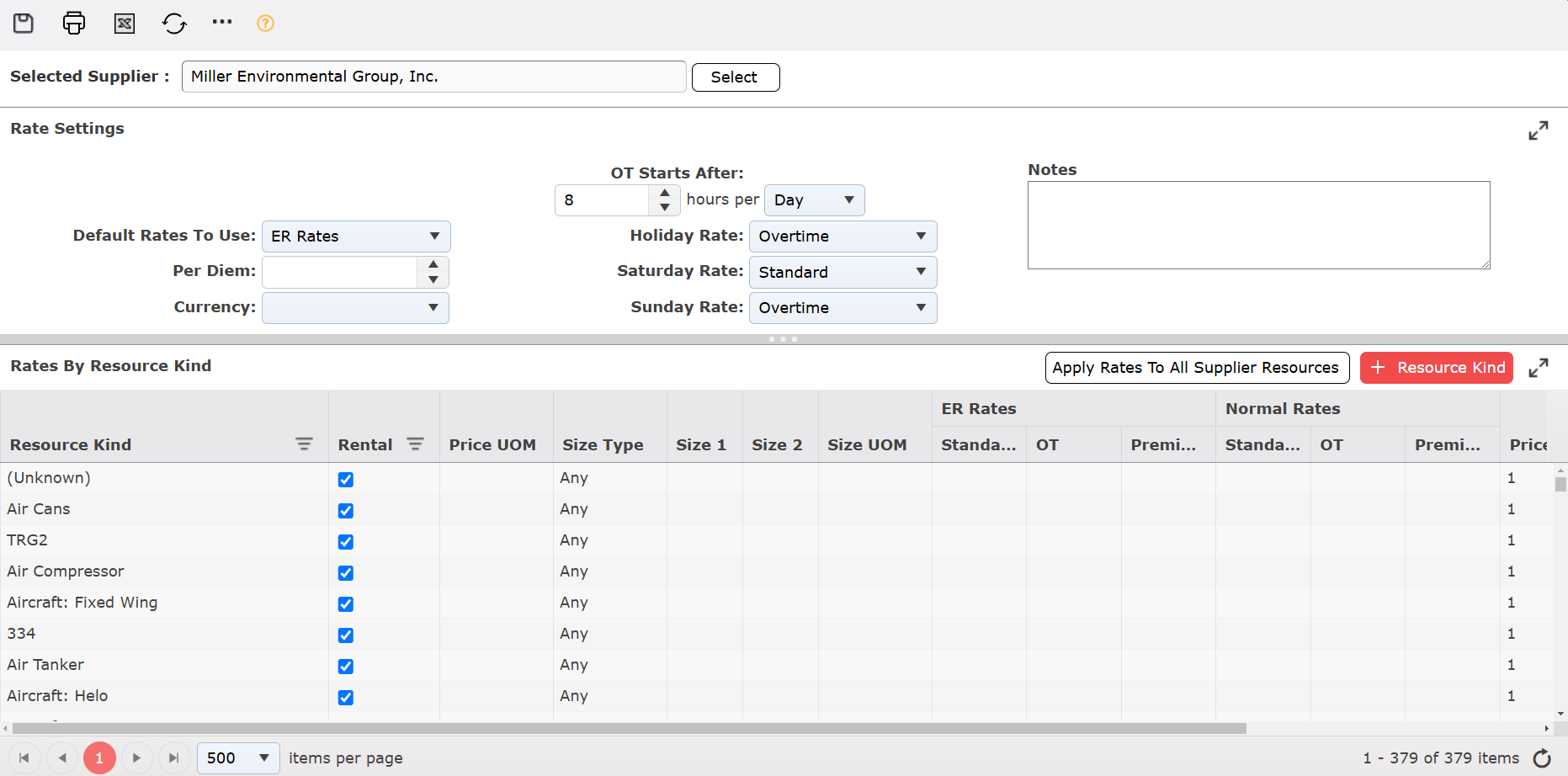
Setting up a supplier’s rate sheets begins with settings. This gives the IAP Software the necessary information to set up all information entered into the Supplier Rates by Resource Kind section below.
Default Rates to Use  tells the software which rate sheet to use for a resource added in for that incident. These rates have their own sections within the rate sheet for each specific supplier and can be found in the Rates by Resource Kind window, within the column selections near the right side of the screen.

NOTE: ER stands for Emergency Response.
Per Diem  is the amount of money allotted for Manpower resources per day for expenditures such as food, gas, and other items on top of their hourly or daily pay rate.
Currency  is the type of currency the rates are denoted in.
OT Start After  is how many hours of work can be done before overtime rates begin.
Holiday Rate, Saturday Rate, Sunday Rate denote the type of rate to be used for those type of days.

Notes is a field to enter in any notes about the supplier and their rates.
This area is used to enter in the values for each resource kind for a supplier. It is sorted by the various resource kinds. More can be added to the list if suppliers have different sizes of a resource kind by using the Add  button. To remove an item, hover over the desired item for a moment and the delete button will appear, then click on the Delete
  button to remove the item. If you remain hovering over the item, the delete button will disappear after a couple of seconds. The Rental column denotes that a resource kind is rented from the supplier
The Price UOM column denotes how the prices are charged (i.e., per day, per hour, etc.)
The Size Type, Size 1, Size 2, and Size UOM columns are used to classify specific sizes for resources for suppliers that have different sizes of the same resource that are priced differently.
Selecting Any in Size Type locks the other three columns.
Selecting Equal To in Size Type unlocks Size 1 and Size UOM. Input the size in Size 1 and the unit of measure (each, feet, gallons, etc.) in the Size UOM.
Selecting Between unlocks Size 2. Use Size 1 to give the lowest size and Size 2 to give the largest size.
ER Rates and Normal Rates are for emergency response and non-emergency prices for resources. Both are divided into four sub categories: Standard, OT, Premium, and Stand By. Use these columns to give prices to each resource.
Standard is the normal rates for that category
OT is the overtime rates.
Premium are the premium rates if applicable.
Stand By are the rates for a resource kind placed in standby.
Price Per Quantity and Price Per Quantity UOM establishes the cost breakdown of a resource based on whether it is charged per unit or per time.
Discount Type is where any discounts can be entered.
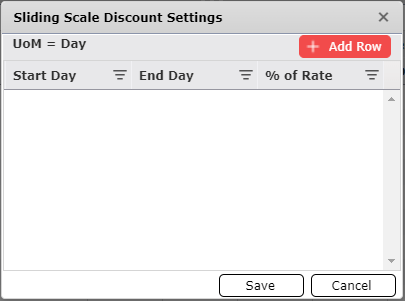
Click the Add link  brings up a window.
Click the Add  button to add a line.
Enter what day of using a resource the discount will begin in Start Day.
Enter what day of using a resource the discount will end in End Day.
Enter the amount of discount in percentage in % of Rate.
Once finished, click the Save  button to save the rate sheet. If the supplier has resources already entered into Resource Maintenance, click the Apply Rates To All Supplier Resources
  and the rates will be applied to all applicable resources entered.
© 2024, TRG The Response Group LLC., All rights are reserved.
No part of this web site, and the information which it contains, may be reproduced, stored in a retrieval system or transmitted in any form or by any means, electronic, mechanical, photocopying, recording or otherwise, without prior written permission of TRG.