| IAP Software ™ |  |
| IAP Software ™ | |
ICS 211 Check-In List
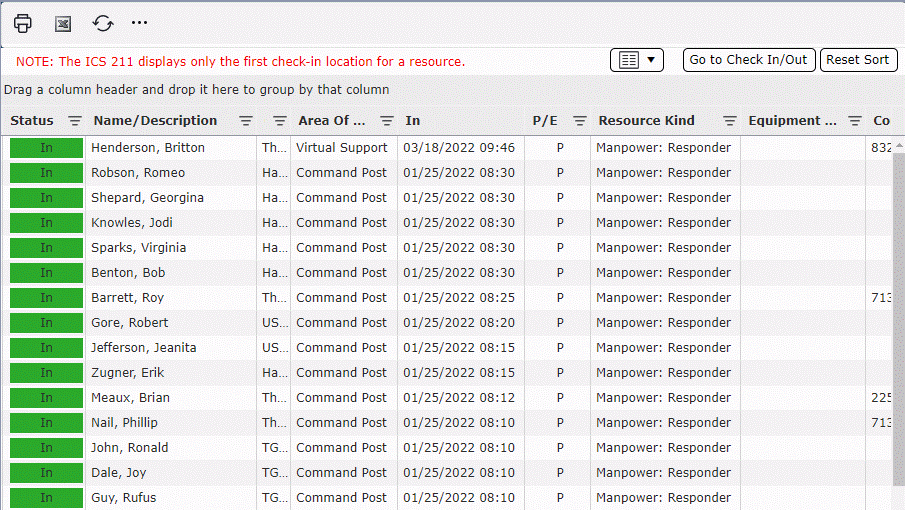
The ICS 211 Check-In List documents when resources (personnel and equipment) become activated for a response. Resources on the ICS 211 Check-In List maintain a checked in status until it is determined by Operations that the resource is no longer needed in the response. At that time, the resource will be demobilized with an ICS 221 Demob Check Out form and the status on the ICS 211 Check-In List will change to Out. For more information, see the ICS 221 Demob Check Out form. For help with using general form functions (e.g. Create/Open Version, Save, etc.) see the General Form Functions page.
Contents
Depending on the incident or event requirements the form display can be customized by sorting and/or filtering the results displayed. For more information on sorting and filtering see the General Form Functions page.
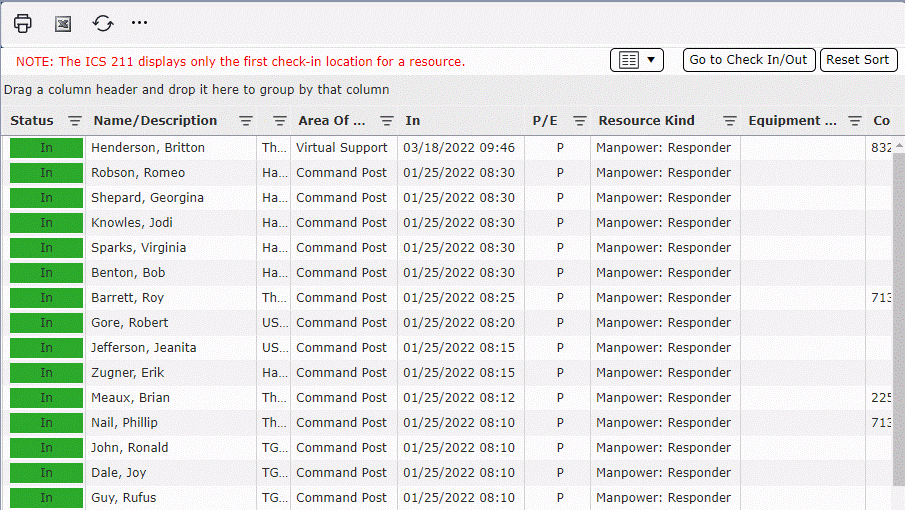
Users can select which columns to show by using the Show/Hide Columns feature. Click on the Show/Hide Columns drop-down for a list of columns. Check or uncheck each column name to show or hide the column from the grid display.
The Reset Sort button  can be used to clear all column sorting.
The Status column is color coded to help visually indicate if the resource is still part of the incident or has been demobilized.
NOTE: If a resource is checked in for the first time using the Check-In/Out form, that resource will appear on the ICS 211 Check-In List as an entry with the status of In for the incident. For more information, see Check-In/Out form page.
Clicking the Go to Check In/Out button  will open the Check In/Out form and enable users to check personnel and resources in and out of different Areas of Operations. See the Check In/Out page for more information on using this form and its capabilities.
Once a resource is demobilized, the status changes to Out (red) and the demobilized date/time appears, as well as, a link to view the ICS 221 Demob Check Out form. Clicking the View button  will open the ICS 221 form associated with the specific resource selected. See the ICS 221 Demob Check Out page for more information on using this form and its capabilities.
Resources can be deleted from the ICS 211 Check-In List and from the incident.
To delete a row, hover over the desired row for a moment and the delete button will appear, then click on the Delete button  to remove the item. If you remain hovering over the row, the delete button will disappear after a couple of seconds.
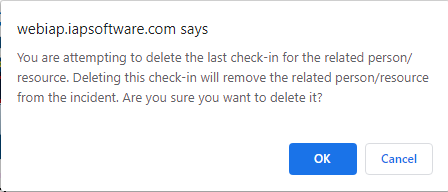
Click OK to confirm the deletion and remove the resource.
© 2024, TRG The Response Group LLC., All rights are reserved.
No part of this web site, and the information which it contains, may be reproduced, stored in a retrieval system or transmitted in any form or by any means, electronic, mechanical, photocopying, recording or otherwise, without prior written permission of TRG.