| IAP Software ™ |  |
| IAP Software ™ | |
ICS 238-CG Demob Tracking Table
The ICS 238-CG Demob Tracking Table is a tool used to track resources which have been demobilized. This form tracks resources from demobilization until return to home base. For help using general form functions (e.g. Create/Open Version, Save, etc.) and accessing preloaded versions, see the General Form Functions page.
Contents
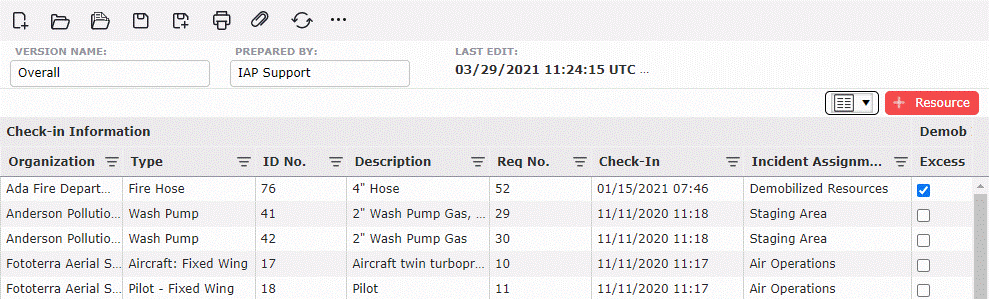
Click the Add button  to open a list showing incident resources which have not yet been demobilized. For more information on using the functions within the Find Resources window, see the Find Resources page.
These resources can also be pulled into the demobilization table by using the ICS 221 – Demob Check Out form by selecting the Add to ICS 238 drop-drown  to add the demobilized resources.
To delete a resource, hover over the desired line item for a moment and the delete button will appear, then click on the Delete button  to remove the line item. If you remain hovering over the line item, the delete button will disappear after a couple of seconds.
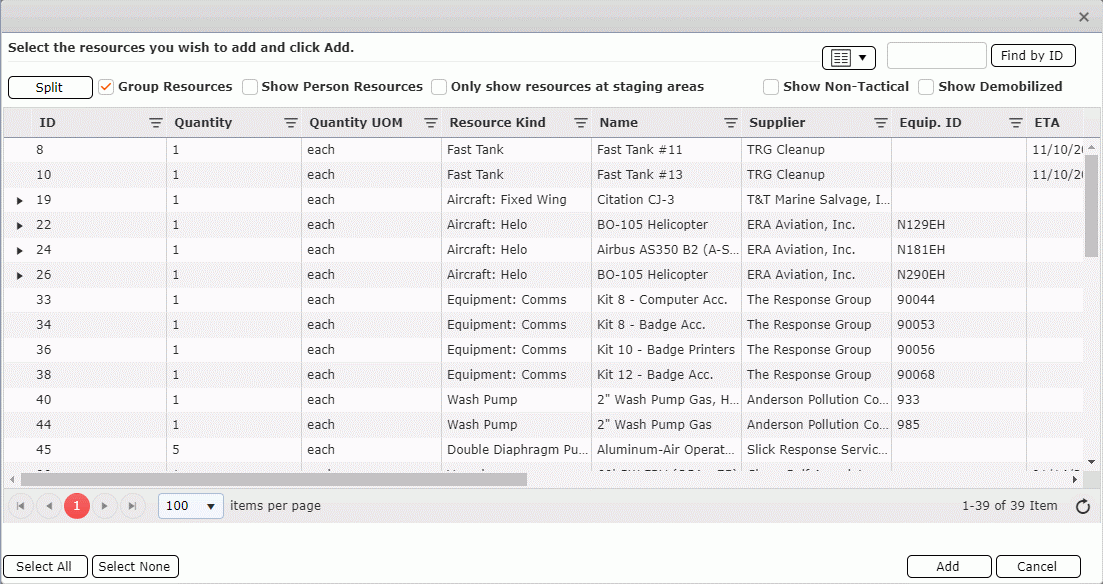
NOTE: When resources are manually added to the Demob Tracking Table, there will be checkbox options near the top of the page: Group Resources, Show Person Resources, Only show resources at staging areas, Show Non-Tactical, Show Demobilized. Each of these options can be selected or unselected to allow better filtering capabilities when manually adding a resource to be demobilized. There is also an option to find a specific resource by its ID in order to help more with searching capabilities.
Select resources to be demobilized, then click the Add button  . The selected resources will be brought into the table. Any resource details which have been entered will also populate the associated columns within the table.
NOTE: Details within the Check-In Information side of the Demob Table can be updated from the Resource Summary by selecting the resource and using the Edit button  . For more information on how to make the changes see the Resources Summary page.
Update the Demob Information section of the form.
Use the Excess checkbox  to indicate resources which are more than current response requirements.
Enter the date of the Last Shift to be worked, the date Sent Home, and the date Arrived Home using the Calendar Control button  or by free typing.
Enter the anticipated ETA to Home in hours by free typing.
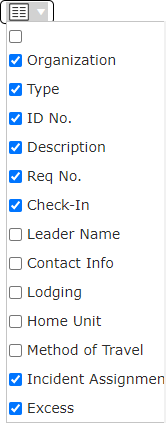
NOTE: There are other fields available to fill in, such as lodging, Leader Name, Contact Info, and more. These fields can be shown by selecting them from the Show/Hide Columns drop-down.
© 2024, TRG The Response Group LLC., All rights are reserved.
No part of this web site, and the information which it contains, may be reproduced, stored in a retrieval system or transmitted in any form or by any means, electronic, mechanical, photocopying, recording or otherwise, without prior written permission of TRG.